
Kutio
Open any zip, 7z, tar or rar on your Mac like a folder. Browse, preview and extract only what you need. No accounts, no analytics, no network code.
What it does
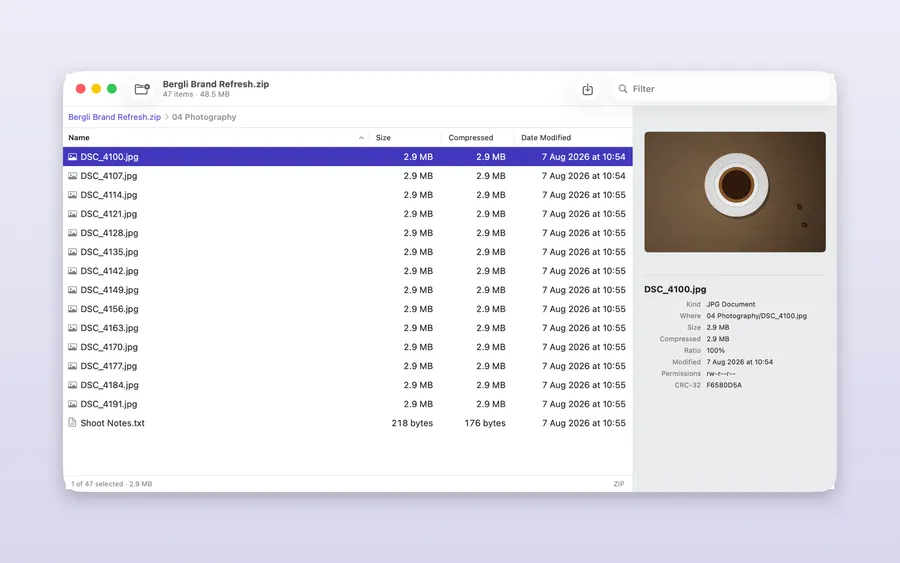
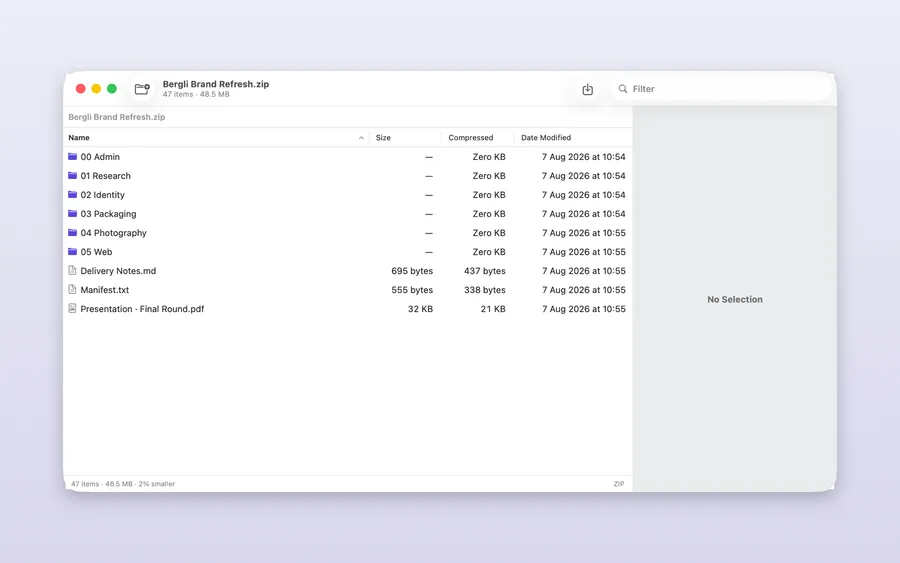
Kutio opens an archive the way Finder opens a folder. You browse it, drill into nested archives, preview what is inside and take out only the files you need. Nothing is written to disk until you extract.
It also compresses and edits. Kutio has no accounts, no analytics and no network code. It is a Mac app, with a product site and support page at kutio.karpinity.com.
How it works
- Browse and inspect. An inspector shows size, ratio, dates, permissions and CRC, with a Quick Look preview for files under 10 MB.
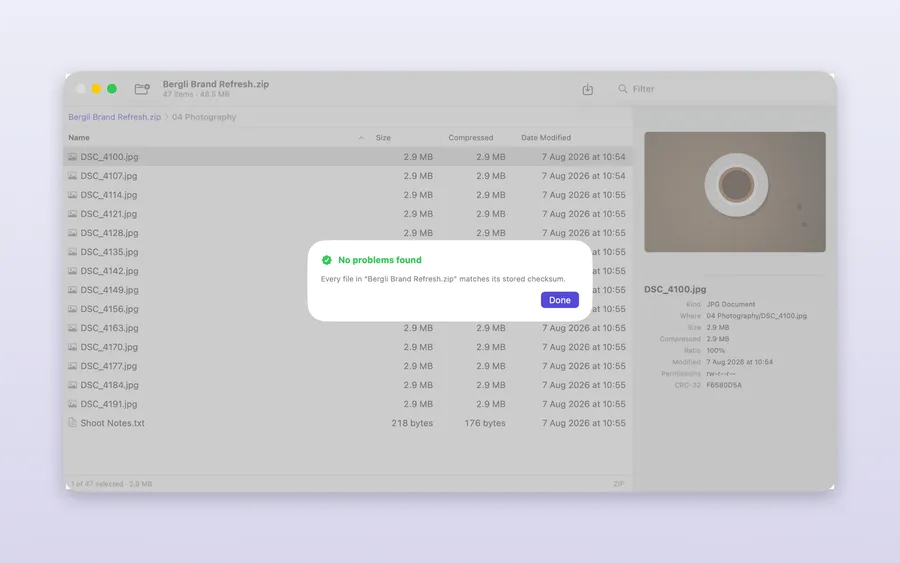
- Verify. Check an archive’s integrity before you extract it.
- Edit in place. Add, delete, rename and undo entries inside an archive.
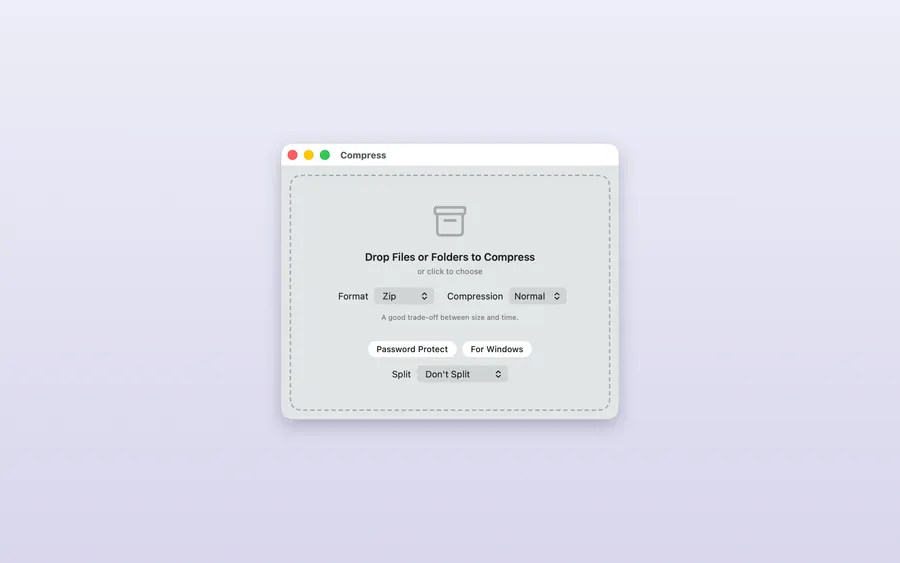
- Compress. Zip, 7z, tar, tar.gz, tar.xz and tar.zst, at four levels, with AES-256 encryption, multi-volume splitting and a “For Windows” preset.
- RAR. Extract only, and the app says so. Kutio never offers to create a RAR.
Kutio runs on macOS 14 or later, on Apple silicon and Intel, with a Quick Look extension and Finder Services.
How the lab built it
Two engines behind one interface
In-process Swift handles browsing and previews. Bundled command-line engines handle creation, RAR and verification. Both sit behind a single interface, and everything runs inside the App Sandbox.
Edits that cannot half-finish
In-place edits happen on a copy and are committed with one atomic swap. If an edit is interrupted, the original archive is untouched.
Diagnostics without file names
Bug reports are redacted by construction and covered by tests, so a report never contains a file name or a path.
Who it’s for
Kutio is for Mac users who open archives every day: developers, designers, researchers and anyone who receives zips from clients and colleagues. It suits people who want to look inside before extracting, and who prefer software that collects nothing.
Screenshots
Get Kutio
Open it in your browser.